
Change your profile photo
Upload or change your HUB profile picture (avatar). Choose a PNG or JPG up to 5 MB, crop and zoom it, and save. Explains the "larger than 5 MB" error.
On this page
Your profile photo appears in HUB and on your Digital ID.
Upload a new photo
- Select your name at the bottom of the sidebar, then select Profile.
- Select the camera button on your photo.
- Choose a PNG or JPG image from your device.
- In Crop your avatar, drag the image to position it. Use the slider to zoom.
- Select Use photo.
- You see "Profile picture updated successfully."
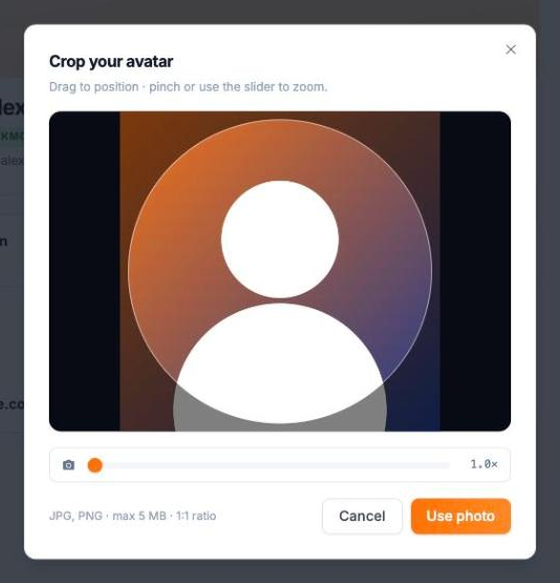
Note: You can also select Avatar uploaded in the Profile completion card to start.
Why won't my photo upload?
- "Image is larger than 5 MB" means the file is too big. Pick a smaller image or resize it first.
- Only PNG and JPG images are accepted.
- To stop without saving, select Cancel.