
Check your notifications
How to see your HUB notifications from the bell icon on the dashboard, what the unread count means, how to open a notification, mark one as read or use Read All, and why the list says "No notifications yet".
On this page
HUB sends you notifications about activity on your account. You'll find them under the bell icon at the top of the dashboard.
Open your notifications
- Select Dashboard in the sidebar.
- Select the bell icon at the top right. A number on the bell shows how many notifications you haven't read.
- Select a notification to open the related page.
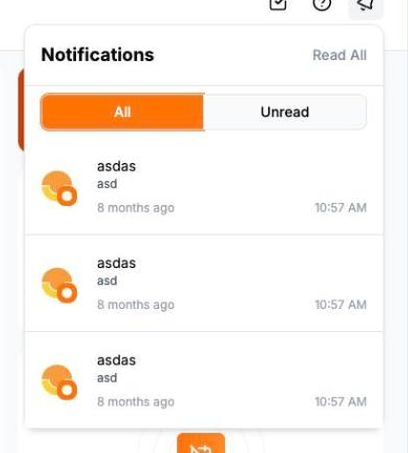
New notifications arrive while you're signed in. You don't need to refresh the page.
Mark notifications as read
- To mark one notification as read, hover over it and select the Mark as read button.
- To clear them all at once, select Read All at the top of the panel.
Read All is greyed out when you have no unread notifications.
Why does it say "No notifications yet"?
You haven't received any notifications for the selected business. If you use HUB for more than one business, switch business in the sidebar to see that business's notifications.