
Find your way around HUB
How to use the HUB sidebar menu: what the Spaces, People, Recruit and other sections contain, how to collapse or expand the sidebar, switch to another business profile, and open your account menu for Profile, Digital ID, Business Profile and Sign out. Explains why a menu item is missing.
On this page
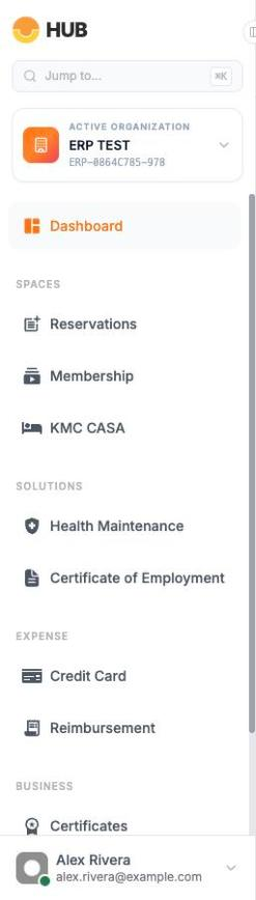
The sidebar on the left is your main menu in HUB. It only shows the sections your account can use.
Use the sidebar
- Select Dashboard at the top of the sidebar to return home.
- Under Spaces, select Reservations for meeting rooms or Membership for your memberships.
- If your business has KMC teams, use People, Recruit and Solutions for HR tasks.
- Select the arrow button at the edge of the sidebar to collapse it to icons. Select it again to expand it.
On a phone, open the sidebar with the menu button at the top of the screen.
Why is a menu item missing?
Menu items depend on your services and your role. For example, Membership only appears if you can view or manage memberships, and Team only appears for clients with KMC staffing services. Ask your company admin to update your role, or contact Client Services.
Switch to another business
If you have access to more than one business, a business switcher appears under the search bar in the sidebar.
- Select the business name in the sidebar.
- In Switch Profile, search for or select the business you want.
- HUB reloads your data for that business.
Note: If you switch business while viewing a membership or invoice, HUB takes you back to the Membership list, because that record belongs to the previous business.
Open your account menu
- Select your name at the bottom of the sidebar.
- Choose Profile, Business Profile or Sign out.
- If you have a member ID, choose Digital ID to show it at reception.
Find a page quickly
Press Cmd+K (Mac) or Ctrl+K (Windows), or select Jump to… in the sidebar. See Search HUB with the command palette.