
Update your profile details
Change your name, job title or phone number on your HUB profile. Covers the Edit profile form, required fields, why your email and employee ID can't be edited, and the Profile completion checklist.
On this page
Keep your name, job title and phone number up to date so KMC and your team can reach you.
Open your profile
- Select your name at the bottom of the sidebar.
- Select Profile.

Edit your details
- On the Personal information card, select the pencil icon.
- In Edit profile, update your First name, Last name, Job title or Phone number.
- Select Save changes.
- You see "Profile updated successfully."
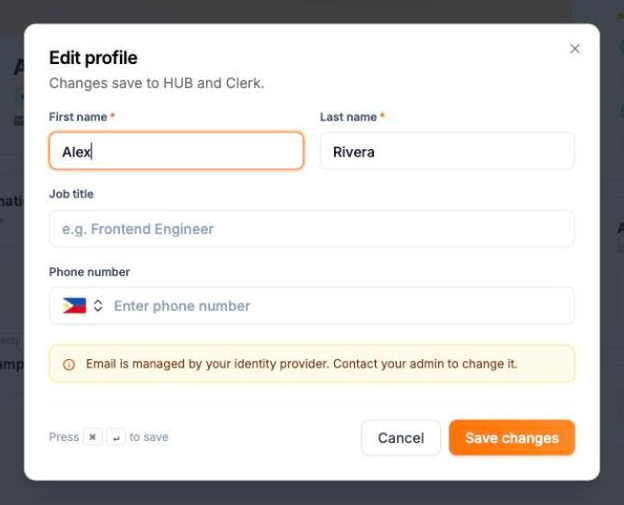
Note: First name and Last name are required. Save changes stays disabled until both are filled in.
Why can't I change my email or employee ID?
Your Email is the address you sign in with, and your Employee ID comes from KMC's records. You can't edit either one here. To change them, contact Client Services.
Complete your profile
The Profile completion card lists what's still missing: name and email, phone number, avatar and job title. Select an item to fill it in. When everything is done, it shows "All set, your profile is complete".
My changes didn't save
If you see "Failed to update profile. Please try again.", wait a moment and select Save changes again. If it keeps failing, contact Client Services.