
Upload your business requirements
Upload the KYC documents KMC needs to verify your business on the Requirements tab of your Business Profile. Covers statuses (Not Uploaded, Pending Review, Accepted, Declined), accepted file types and size, and how to re-upload a declined document.
On this page
Your Business Profile shows the documents KMC needs to verify your business, your contracts and your shared files.
Open your Business Profile
- Select your name at the bottom of the sidebar.
- Select Business Profile.
- Select the Requirements tab.

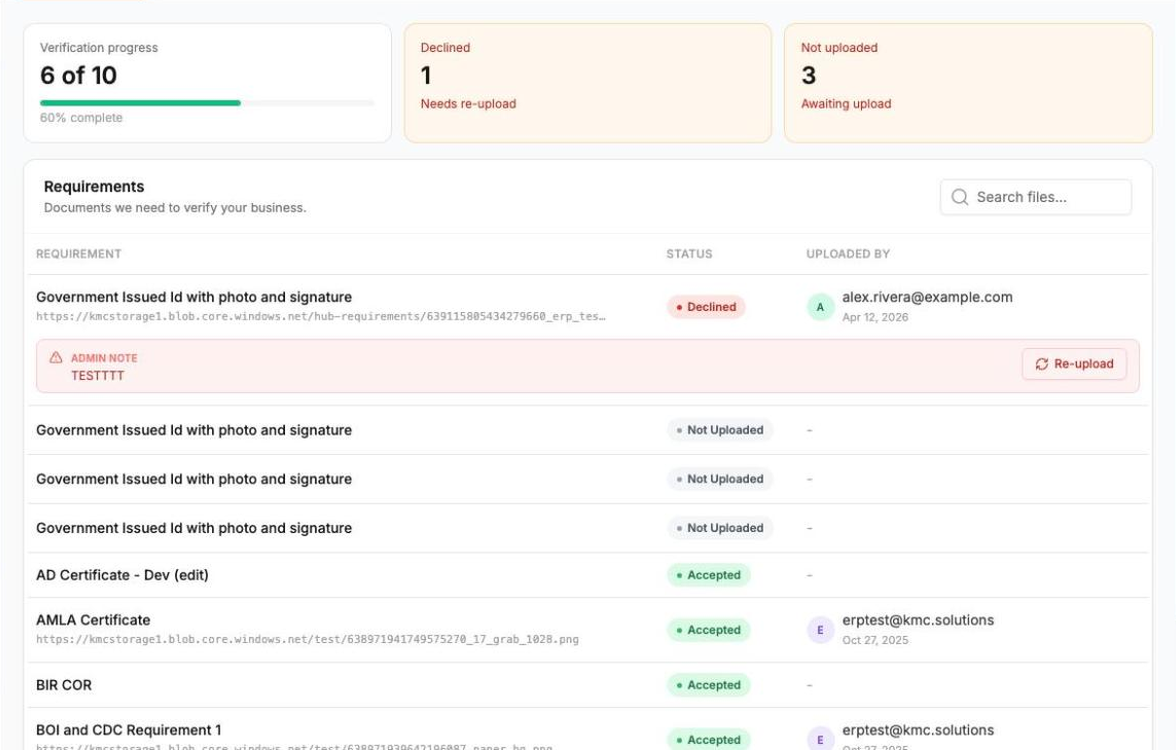
Verification progress shows how many requirements are accepted so far.
Upload a requirement
- Find the requirement in the list. You can type its name in Search files....
- Point to the row and select the upload icon (Upload).
- Drag your file into the box, or select it to browse.
- Select Upload.
- You see "Requirement uploaded successfully" and the status changes to Pending Review.
Note: You can upload one JPG, PNG or PDF file per requirement, up to 10 MB.
What do the statuses mean?
- Not Uploaded: we're still waiting for this document.
- Pending Review: you uploaded it and KMC is reviewing it.
- Accepted: the document is approved.
- Declined: KMC needs a new version. Read the Admin Note under the row.
Re-upload a declined document
- Read the Admin Note under the declined requirement.
- Select Re-upload.
- Choose the corrected file and select Upload.
- The status changes to Pending Review.
Why was my file rejected?
- "is not a supported format" means the file isn't JPG, PNG or PDF.
- "exceeds the 10 MB limit" means the file is too large. Compress it or save it as a smaller PDF.
To view a file you already uploaded, select the eye icon (View) on its row.