
Complete tasks in Things to do
How to use the Things to do list on your HUB dashboard. Open pending tasks like signing a contract, assigning a seat, uploading a required document or approving a request, what the red alert icon and "Waiting X days" mean, and what "No pending tasks" means.
On this page
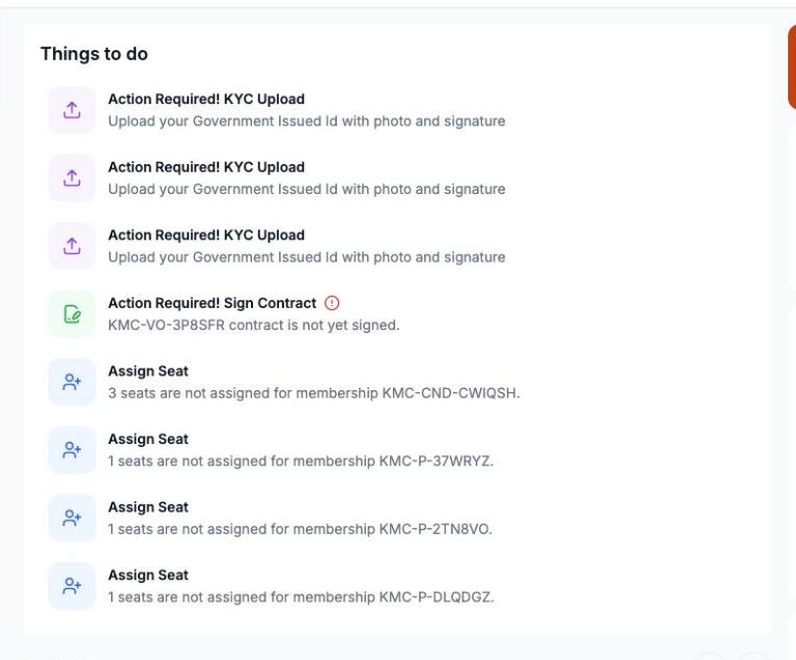
Things to do on your dashboard lists the tasks that are waiting for you. Each task takes you straight to the page where you can finish it.
Open a task
- Select Dashboard in the sidebar.
- Find the Things to do card.
- Select a task. HUB opens the page where you complete it.
- Finish the task there. It drops off the list once it's done.
What kinds of tasks appear?
The list depends on your services and role. Common tasks include:
- Signing a membership contract.
- Assigning people to unfilled seats.
- Uploading a required document.
- Completing client accreditation or preparing for move-in.
- HR approvals and signatures, for clients with KMC teams.
What the labels mean
- A red alert icon next to the title marks an urgent task, such as a contract waiting for your signature.
- A yellow badge shows the task's current status.
- Waiting X days shows how long the task has been open.
- Some tasks open in a new browser tab, for example an external signing page.
Why does it say "No pending tasks"?
You're all caught up. New tasks appear here automatically when something needs your action.
Note: If you expected a task and don't see it, check that the right business is selected in the sidebar. Tasks only show for the selected business.
See also: Review and sign your membership contract, Upload your business requirements.