
View your reservations and history
See your upcoming meeting room reservations on the calendar, open a booking's details, and browse past or cancelled reservations in History by month, year, and status, including hours billed, free hours, and credits used.
On this page
See your upcoming reservations
- Select Reservations in the sidebar.
- Stay on the Reservations tab.
- Switch the calendar between day, week, month, and agenda views.
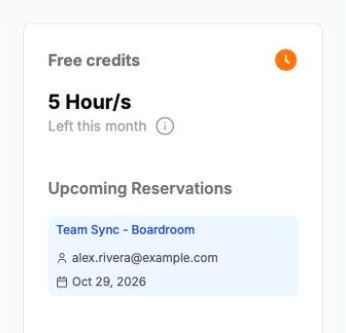
On larger screens, the right panel lists your Upcoming Reservations and your Free credits left this month.
Open a reservation's details
Select a reservation on the calendar or in Upcoming Reservations. A panel opens with the status, location, agenda, start and end time, duration, and who reserved it.
From this panel you can also reschedule or cancel a future booking. See Reschedule a reservation and Cancel a reservation.
Browse past and cancelled reservations
- Select the History tab.
- Choose Confirmed or Cancelled.
- Choose the month and year.

The summary at the top shows the total reservations, billed hours, free hours, and credits left this month for the period you picked.
What do the tags on a reservation mean?
Each reservation in History shows how its hours were covered:
- Free: hours covered by free meeting room use.
- Credits: hours taken from your meeting credits.
- Billable: hours charged beyond your free hours and credits.
- Billed and Paid: extra hours you already paid for when you booked.
If you see No reservations found, try another month, year, or status.